
Using Plesk for Backups: Complete AVIOX Cloud Guide
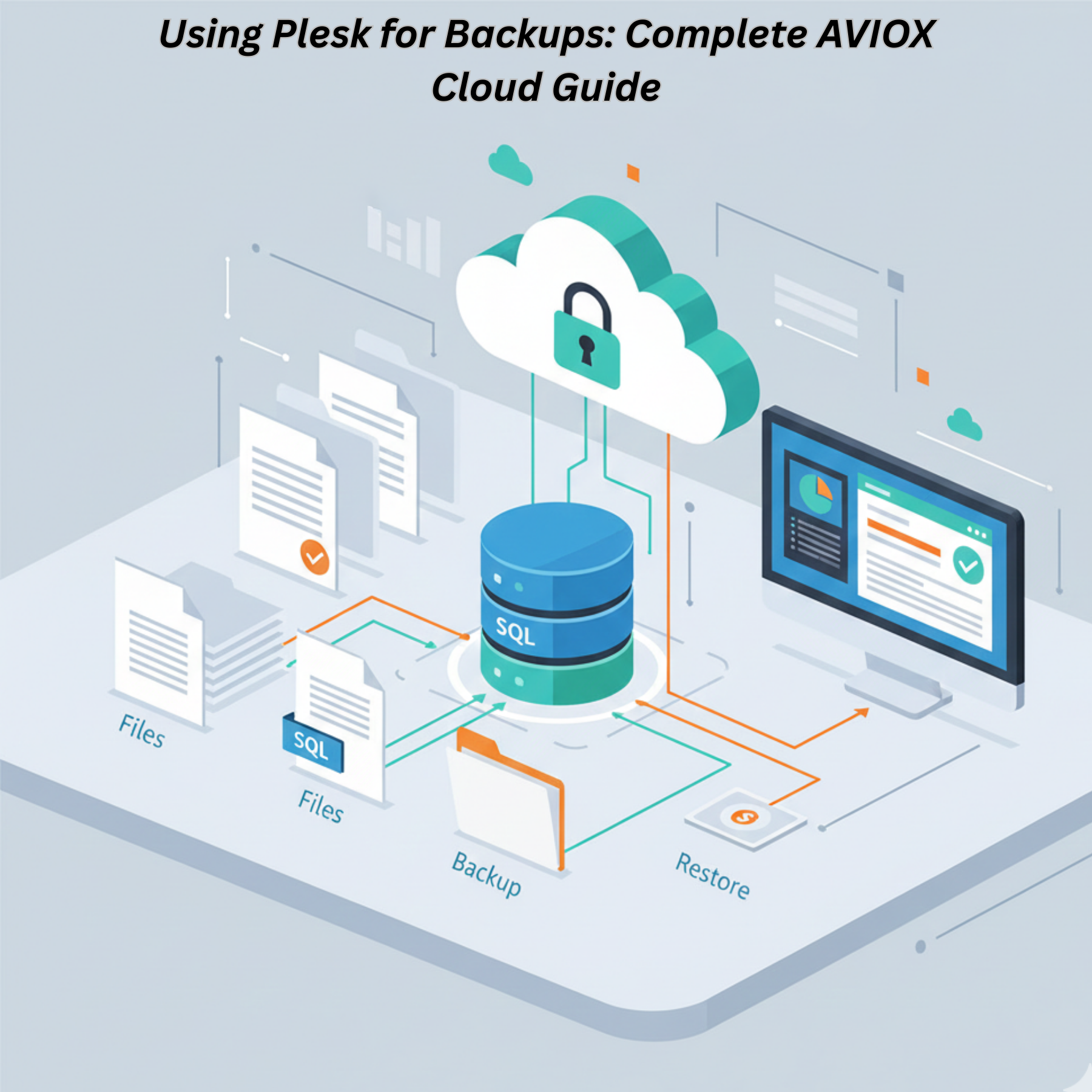
Managing and protecting your hosting environment is easier when you use the tools built directly into your control panel. Plesk is one of the most powerful and widely used hosting control panels, offering a complete backup solution that helps you secure websites, databases, emails, and server settings with minimal effort. On AVIOX Cloud, Plesk Backup Manager provides everything you need to automate backups, store them safely, and restore data instantly when needed.
This guide explains how Plesk backups work, how to create them, where to store them, and how to use advanced features for maximum reliability.
Why Backups in Plesk Are Important
Your hosting environment contains essential components such as:
Website files
Databases
Application settings
Server configurations
Email accounts
Data losses can happen due to:
Website hacks
Plugin or theme errors
Corrupted files
Server crashes
Incorrect updates
Plesk Backup Manager lets you create secure snapshots that allow quick recovery, ensuring business continuity and uptime.
Types of Backups in Plesk
Plesk provides different levels of backups depending on your needs:
1. Full Backup
Creates a complete copy of everything in your subscription — ideal for system-wide restoration.
2. Incremental Backup
Stores only the changes made since the last backup, saving space and time.
3. Partial Backups
Back up only specific components like:
Files
Databases
Email accounts
DNS settings
How Plesk Backup Manager Works
Backup Manager lets you manually run a backup or create a schedule that runs daily, weekly, or monthly. You can store backups:
Locally (server storage)
On external FTP/SFTP servers
On cloud storage via extensions
On remote backup space provided by AVIOX Cloud
Each backup can be encrypted with a password for additional security.
Step-by-Step: Creating a Backup in Plesk
1. Access Backup Manager
Login to Plesk → Go to Tools & Settings → Backup Manager.
2. Choose Backup Content
Select whether you want:
Full backup
Incremental
Only files, databases, or email
3. Select Storage Location
Choose:
Local
Remote FTP/SFTP
Cloud extensions
4. Configure Additional Settings
You can:
Enable compression
Set password encryption
Exclude logs or temporary files
Add custom email notifications
5. Start the Backup
Click OK to initiate the process.
Plesk will generate a backup and notify you when it’s completed.
Scheduling Automated Backups
Automation ensures consistent protection without human involvement.
To schedule:
Go to Backup Manager
Click Schedule
Set frequency
Pick storage
Customize retention policies
This ensures your backups run on time and old backups get deleted automatically.
Restoring From Plesk Backups
Restoration options include:
Full server restore
Single website
Database
Emails
Files or folders
Steps:
Open Backup Manager
Choose a backup file
Select what you want to restore
Confirm
Plesk will automatically overwrite or repair the selected components.
Using Remote Storage With Plesk
Storing backups remotely increases security in case your main server fails. AVIOX Cloud allows storing backups on:
FTP backup space
Object storage
External servers
Benefits:
Offsite protection
Higher redundancy
Ransomware resistance
To configure remote FTP storage:
Go to Tools & Settings → Backup Manager → Remote Storage Settings → Add FTP/SFTP credentials.
Best Practices for Plesk Backups
✔ Use remote storage
Local backups are risky if the server fails.
✔ Keep multiple versions
Helps restore older clean versions.
✔ Always encrypt backups
Protects sensitive data.
✔ Monitor storage usage
Avoid running out of disk space.
✔ Test restoration
Ensure your backup files are valid.
Conclusion
Plesk Backup Manager, when used correctly on AVIOX Cloud, gives you a complete and secure way to protect your websites, email, databases, and configurations. With automated scheduling, remote storage, encrypted backups, and fast restore abilities, Plesk provides everything required to maintain uptime and prevent data loss.
Whether you’re hosting a single site or managing multiple clients, this backup system keeps your environment safe and dependable
Leave a comment
Your email address will not be published. Required fields are marked *