
Mastering AVIOX Cloud Backup Space: A Complete Step-by-Step Guide
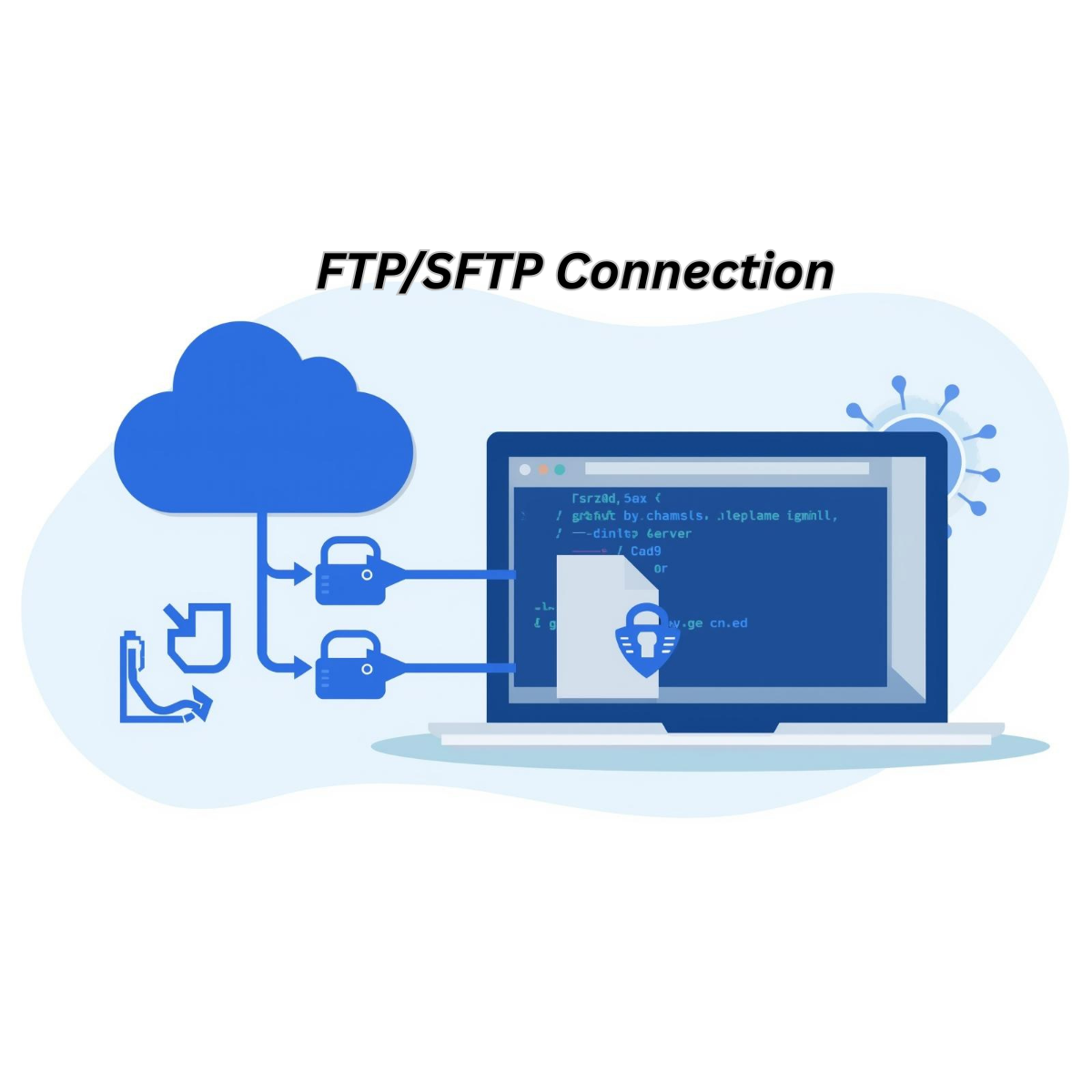
Managing backups is one of the most important responsibilities of any server administrator. Whether you’re hosting websites, applications, or databases, you must ensure that your data is safe, secure, and recoverable in case of system failures or cyberattacks. AVIOX Cloud Backup Space provides an easy, affordable way to store off-server backups using industry-standard protocols. The service works seamlessly with Linux, Windows, cPanel, and most backup automation tools.
This guide will take you through the full process—from accessing your backup space to automating daily backups on your VPS.
1. What Is AVIOX Cloud Backup Space?
AVIOX Cloud Backup Space is a remote storage solution designed specifically for VPS users who need a secure and scalable backup location. Instead of storing backups on your live server—which can consume disk space and risk data loss—AVIOX provides a separate, dedicated environment accessible using standard file transfer methods.
Key Features
- Secure connection options (FTP, FTPS, SFTP, Rsync)
- Expanding storage options (100GB, 250GB, 500GB, 1TB+)
- Multi-server and multi-user capability
- Works with all backup tools (Rsync, rclone, cPanel backups, cron scripts)
- 24/7 availability with data redundancy
Storing backups off-server ensures that even if your VPS faces corruption, deletion, misconfiguration, or a security breach, your data remains protected.
2. Accessing Your AVIOX Backup Credentials
Once your Cloud Backup Space is activated inside the AVIOX Cloud dashboard, you will receive:
- Backup hostname
- Username
- Password
- Connection ports
- Protocols supported (FTP/SFTP/Rsync)
You can find this information in the Backup Space section of the AVIOX Dashboard.
These credentials are required for any connection—manual or automated.
3. Connecting to AVIOX Backup Space (FTP/SFTP)
Using an FTP client like FileZilla, you can visually upload, download, and manage your backup files.
Steps to Connect
- Open FileZilla.
- Go to Site Manager → New Site.
- Select protocol:
- SFTP – Recommended for high security
- FTP with TLS – Supported but less secure
- Enter:
- Host: Backup hostname provided by AVIOX
- Username: your-backup-username
- Password: your-backup-password
- Port: Usually 22 (SFTP) or 21 (FTP)
- Click Connect.
Once connected, your backup space will appear similarly to a regular server directory, allowing drag-and-drop transfers.
4. Connecting via Terminal (Linux VPS)
Most VPS users prefer using Rsync or SFTP from the command line.
SFTP Command
Rsync Command (Recommended)
Rsync only transfers file changes, which reduces time and bandwidth usage.
5. Automating Backups with Cron Jobs
Automating backups ensures your data is always current without manual effort.
Create a Backup Script
Create a file named:
/usr/local/bin/aviox-backup.sh
Make the script executable
Add Cron Job
Run daily at 1 AM:
Your server will now back up automatically every day.
6. Backup Best Practices for AVIOX Cloud Storage
✔ Maintain a folder structure
Organize your data logically:
✔ Monitor backup storage usage
You can check storage usage inside your AVIOX dashboard.
✔ Enable compression
Use .zip, .tar.gz, or .7z to reduce file sizes.
✔ Delete old backups
Set rotation rules to avoid storage overuse:
- Keep daily backups for 7 days
- Keep weekly backups for 4–5 weeks
- Keep monthly backups for 6–12 months
✔ Test your restores
A backup is only valuable if it can be restored. Test downloads periodically.
7. Restoring Files from AVIOX Backup Space
Restoring is simple—just reverse the transfer process.
Using Rsync
Using FileZilla
Drag files from the right panel (backup space) to the left panel (your computer or server).
8. Who Should Use AVIOX Cloud Backup Space?
This service is ideal for:
- VPS & dedicated server administrators
- Web hosting companies
- Developers running production applications
- cPanel/DirectAdmin server owners
- E-commerce stores
- Agencies managing multiple client sites
If your server stores anything important, off-server backups are essential.
9. Benefits of Using AVIOX for Backups
- Reliable infrastructure with redundant storage
- High-speed access using secure protocols
- Affordable pricing compared to traditional cloud providers
- Supports automation with built-in tools and scripts
- No complicated setup—works with any system
AVIOX Backup Space is designed to give users peace of mind knowing their data is safe, accessible, and protected from disaster.
Conclusion
AVIOX Cloud Backup Space makes it easy for VPS users to securely store backups off-server using widely supported protocols. Whether you prefer manual FTP uploads or automated Rsync scripts, the platform provides the flexibility and security needed to protect your data. Following the steps in this guide, you can set up reliable backups, schedule automated tasks, manage your storage effectively, and ensure rapid recovery from any unexpected data loss.