
Linux Backup Guide for Debian & Ubuntu: Essential Methods to Protect Your Data
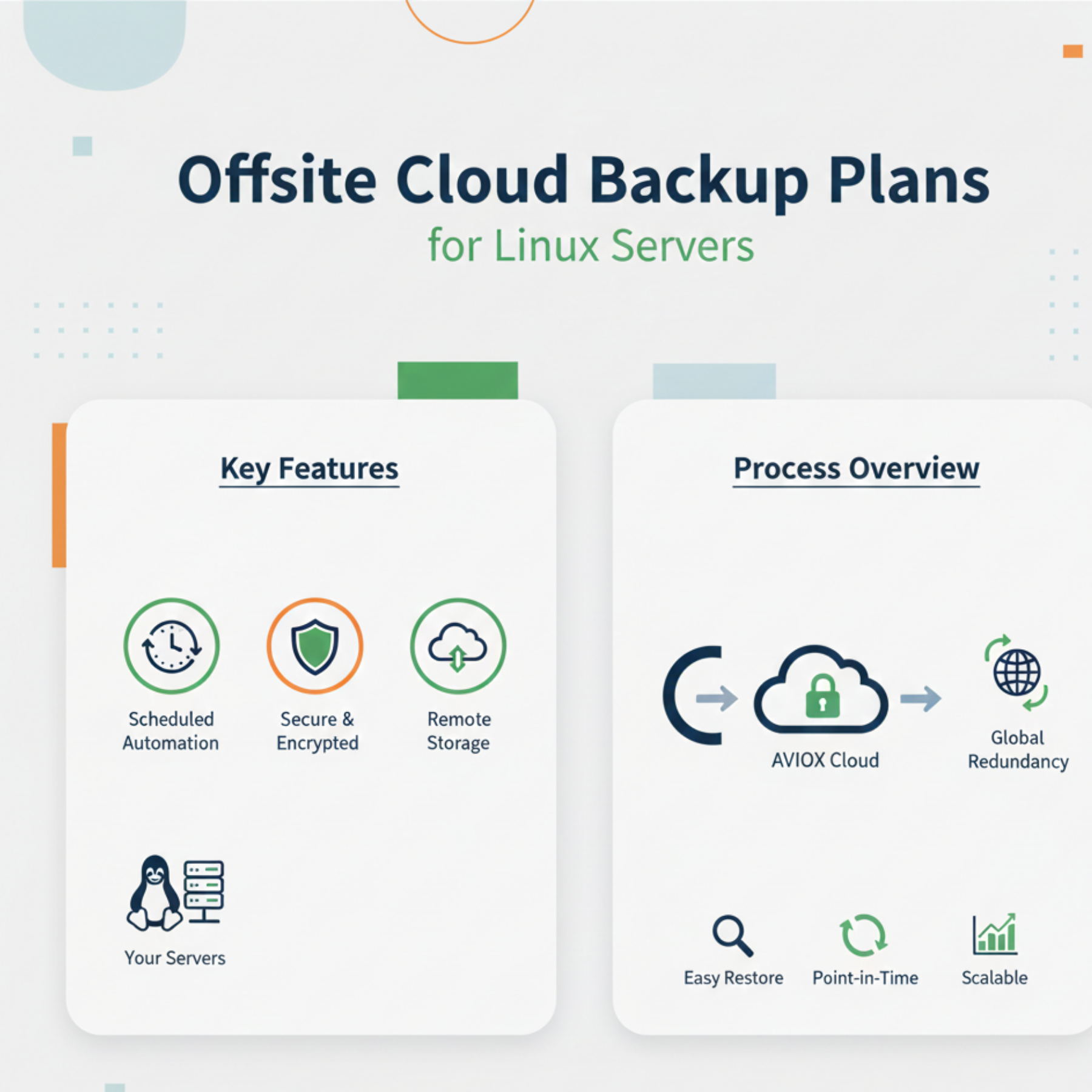
Linux systems are known for their reliability, performance, and security, but no system is immune to failure. Whether you manage a single server or a large infrastructure, backing up your Linux environment is essential. Debian and Ubuntu offer built-in tools, advanced utilities, and flexible automation options — making backup processes easy and efficient.
This guide walks you through the most reliable backup methods for safeguarding your Linux data.
Why Linux Backups Are Important
A solid backup strategy protects you from:
System crashes
User mistakes (accidental file deletion)
Hardware failure
Corrupted configurations
Ransomware or malware
Migration or upgrades gone wrong
With proper backups, you can restore your entire system or specific files in just minutes.
1. Using Rsync for File Backups
rsync is one of the most popular Linux backup tools.
Why Use Rsync?
Fast incremental backups
Syncs only changed files
Works locally and remotely
Supports SSH for secure transfers
Basic Command Example:
To back up to a remote server:
2. Using Tar for Compressed Backup Archives
tar is excellent for creating compressed full backup archives.
Create a Backup Archive:
Extract a Backup:
Tar backups are ideal for archiving folders, projects, or configurations.
3. Automated Backups with Cron Jobs
Linux's cron system makes automation easy.
Example Daily Cron Backup:
This runs at 2 AM daily.
Automation ensures backups always run on schedule without manual steps.
4. Timeshift – System Snapshot Tool (Ubuntu)
Timeshift creates system-level snapshots.
Best For:
Restoring after system updates
Repairing OS problems
Quick rollbacks
It works similarly to Windows System Restore but for Linux systems.
5. Deja Dup – Simple GUI Backup (Ubuntu)
Deja Dup is an easy-to-use graphical backup tool.
Features:
Encryption
Cloud support
Scheduling
Automatic backups
Ideal for desktop users and beginners.
6. Advanced Tools: Borg, Restic & Duplicity
BorgBackup
Deduplication
Encrypted
Very fast incremental backups
Restic
Simple
Secure encryption
Works with cloud object storage
Duplicity
Supports encrypted incremental backups
Works with FTP, SFTP, etc.
These tools are excellent for enterprise-grade backup strategies.
7. Offsite Backups to Cloud or Remote Servers
Storing backups remotely ensures protection against server failure.
Methods:
SFTP
Rsync over SSH
Object Storage (e.g., AVIOX Storage)
FTP/FTPS
Always encrypt offsite backups.
8. Backup Best Practices
Follow the 3-2-1 Rule
3 copies
2 different formats
1 offsite
Encrypt Sensitive Backups
Especially before uploading to remote storage.
Test Restores
Never assume a backup works — test regularly.
Keep a Backup Schedule
Daily, weekly, and monthly cycles.
Final Thoughts
Debian and Ubuntu provide powerful tools for reliable backups — whether you're a beginner or a system administrator. Combining rsync, tar, cron jobs, and advanced cloud-based methods ensures your data is always safe, recoverable, and protected against disasters.
Leave a comment
Your email address will not be published. Required fields are marked *