
How to Set Up FTP Access on Your AVIOX Cloud Server – Complete Step-by-Step Guide
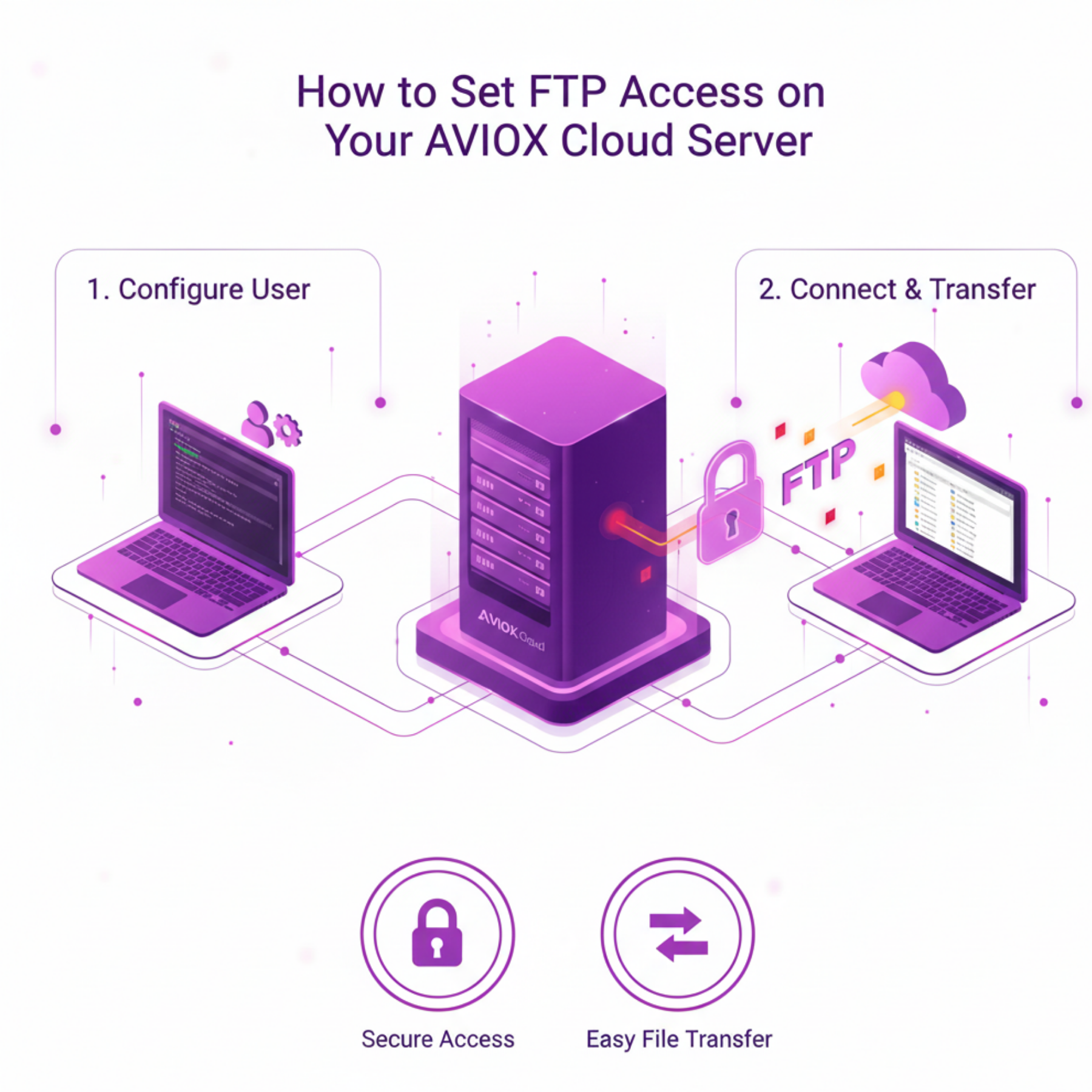
FTP (File Transfer Protocol) is one of the simplest ways to manage files on your server. Whether you're updating your website, deploying applications, or editing configuration files, FTP provides an accessible interface for transferring files quickly. On AVIOX Cloud, setting up FTP is fast and secure when done correctly. In this guide, we’ll walk through installing an FTP server, adding users, securing access, and connecting via FTP clients.
1. Choosing the Right FTP Server
AVIOX Cloud supports multiple FTP servers, but the two most popular are:
vsftpd (Very Secure FTP Daemon) – known for strong security
ProFTPD – highly customizable
For most users, vsftpd is recommended due to its simplicity and robust security features.
2. Installing vsftpd on AVIOX Cloud
Ubuntu/Debian
CentOS / AlmaLinux / RockyLinux
Start and enable the service:
Verify status:
3. Configuring FTP Settings
Open the configuration file:
Enable recommended options:
Restart the service:
4. Creating FTP Users
Create a new user for FTP:
Assign directory access:
5. Securing FTP with SSL/TLS
Generate SSL certificate:
Enable SSL in the config file:
Restart vsftpd.
6. Opening Firewall Ports
Or for firewalld:
7. Connecting via FTP Client
Use FileZilla and enter:
Host: your-server-ip
Username: ftpuser
Password: your password
Port: 21
Ensure passive mode is enabled.
8. Common FTP Issues & Fixes
Login Incorrect
Ensure user shell is valid:
Permission Denied
Fix ownership:
Passive Mode Failures
Set in /etc/vsftpd.conf:
Conclusion
Setting up FTP access on AVIOX Cloud is simple once you understand the process and implement proper security. Whether you're deploying websites or maintaining online applications, a correctly configured FTP system ensures smooth file management and reliable server accessibility.
Leave a comment
Your email address will not be published. Required fields are marked *