
How to Connect to Your Windows Server via RDP on AVIOX Cloud (Beginner-Friendly Guide)
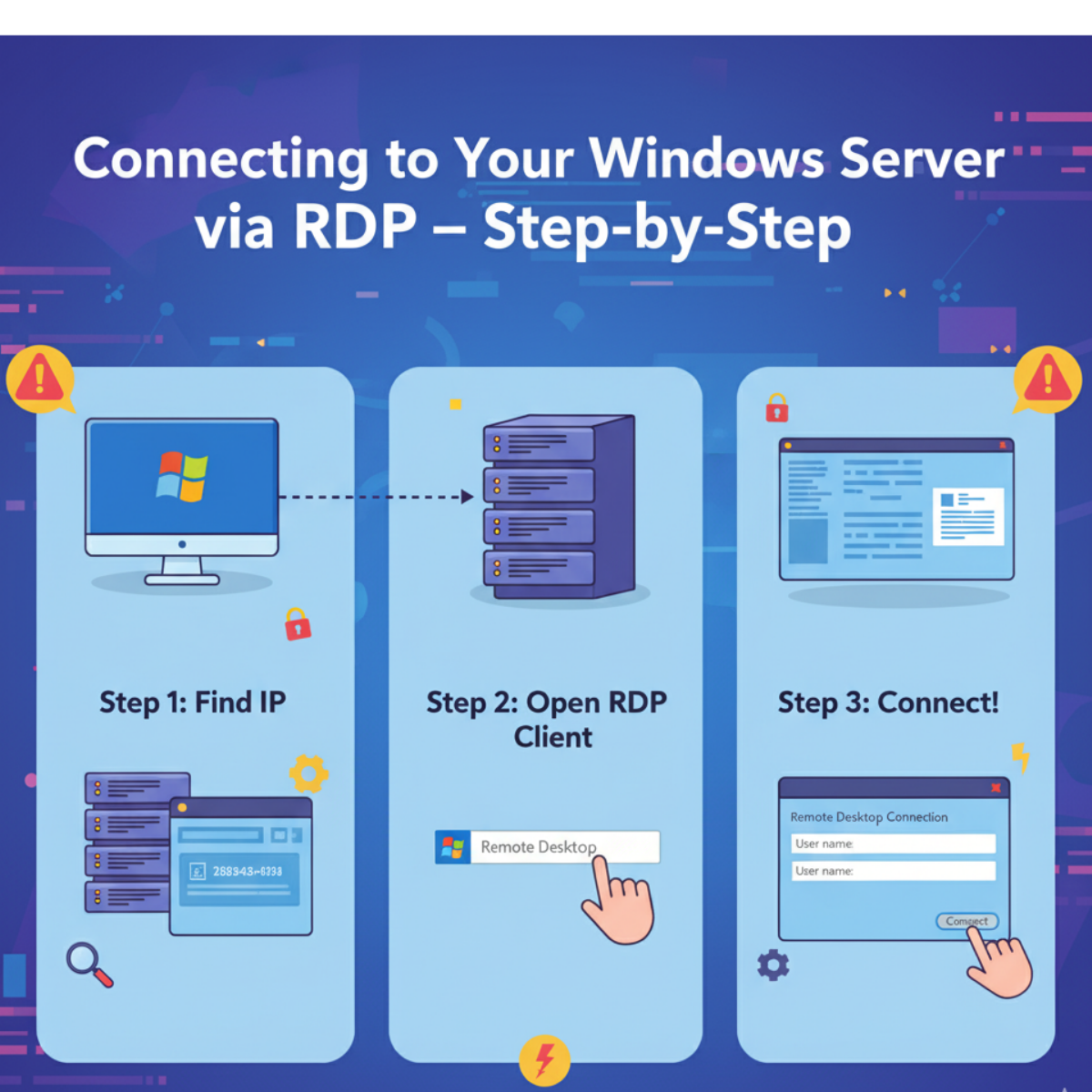
Connecting to a Windows server through Remote Desktop Protocol (RDP) is one of the easiest and most reliable ways to manage your AVIOX Cloud server. Whether you are hosting applications, running a database, managing users, or using your server as a remote workstation, RDP gives you full graphical access just like using a normal Windows computer. This guide walks you through everything—from locating your login details to securely connecting for the first time.
1. What is RDP and Why You Need It?
RDP (Remote Desktop Protocol) is a Microsoft-developed protocol that allows users to connect to a server or computer remotely through a graphical interface. Unlike SSH, which is commonly used for Linux servers and requires command-line knowledge, RDP gives you a familiar Windows desktop environment. This makes it perfect for new server users, small business owners, students, developers, and remote workers who prefer visual control instead of terminal commands.
When you purchase a Windows VPS from AVIOX Cloud, RDP access comes preconfigured, allowing you to connect instantly with the username and password provided in your client panel.
2. Requirements Before You Begin
Before connecting, make sure you have:
- Your Windows Server IP address
- Your username (usually Administrator)
- Your password
- A device with an RDP client (Windows, Mac, Linux, Android, or iOS)
AVIOX Cloud includes all necessary credentials in the server deployment email and client dashboard.
3. How to Connect from Windows (Easiest Method)
Windows has a built-in Remote Desktop Connection (RDC) tool, so you don’t need to install anything extra.
Steps:
- Click Start Menu
- Search for Remote Desktop Connection
- Open the app
- In the “Computer” field, enter your server IP
- Click Connect
- When prompted, enter your username (Administrator)
- Enter your password
- Click OK to log in
In a few seconds, your Windows Server desktop will appear on the screen. You can now install apps, browse the internet, manage files, and control your server just like a local PC.
4. Connecting from macOS
Mac users need to download Microsoft’s official RDP client from the App Store.
Steps:
- Search for Microsoft Remote Desktop in the App Store
- Install the app
- Open it and click Add PC
- Enter your AVIOX Cloud VPS IP
- Add the username & password
- Save and double-click to connect
macOS offers smooth performance and supports multi-monitor setups for Windows servers.
5. Connecting from Mobile (Android / iPhone)
If you need access on the go, connecting from a phone is easy:
- Install Microsoft Remote Desktop from Play Store / App Store
- Tap + Add → Add PC
- Enter your IP, username, and password
- Tap to connect
This is helpful for quick monitoring or emergency server access when you are away from your computer.
6. Common RDP Connection Issues (and Fixes)
Even though RDP is simple, sometimes users face issues—most often related to networking or firewall settings.
Issue 1: “Remote Desktop Can’t Connect to the Computer.”
Fix:
- Make sure your server is online
- Check that port 3389 is open
- Restart your server from AVIOX Cloud panel
Issue 2: Invalid Username or Password
Fix:
- Copy credentials carefully
- Reset your password from the AVIOX Cloud dashboard
Issue 3: Black Screen or Slow Response
Fix:
- Try lowering display resolution in your RDP client
- Restart RDP session
- Increase RAM/CPU if needed
7. Securing Your RDP Connection
Security is critical for Windows servers because RDP is a common target for unauthorized access attempts.
Here are essential protection steps:
1. Change the Default RDP Port (3389)
This reduces automated brute-force attacks.
2. Enable Firewall Rules
Allow access only from trusted IP addresses.
3. Use Strong Passwords
Avoid simple or common passwords.
4. Regularly Update Windows
Security patches protect your server from vulnerabilities.
5. Enable Network Level Authentication (NLA)
This adds an additional authentication layer before the full session loads.
AVIOX Cloud users can configure all these settings easily through the Windows Server interface.
8. Managing Your Server After Login
Once connected, you can:
- Install software
- Download files
- Create and manage users
- Run Windows applications
- Host websites or applications
- Monitor performance with Task Manager
- Configure security and updates
Your VPS behaves exactly like a dedicated Windows PC—but with cloud-powered speed and flexibility.
Conclusion
Connecting to your Windows Server via RDP is the fastest, easiest, and most intuitive way to manage your AVIOX Cloud VPS. Whether you’re running business applications, hosting a website, or operating a remote desktop environment, RDP gives you full control. With the steps outlined in this guide, even first-time users can confidently access and manage their server within minutes.